Git Worktree vs Branch: When You Need Both
Git worktree vs branch explained: what each is, the commands, the one-branch-per-worktree rule, and why parallel AI agents need worktrees, not just branches.
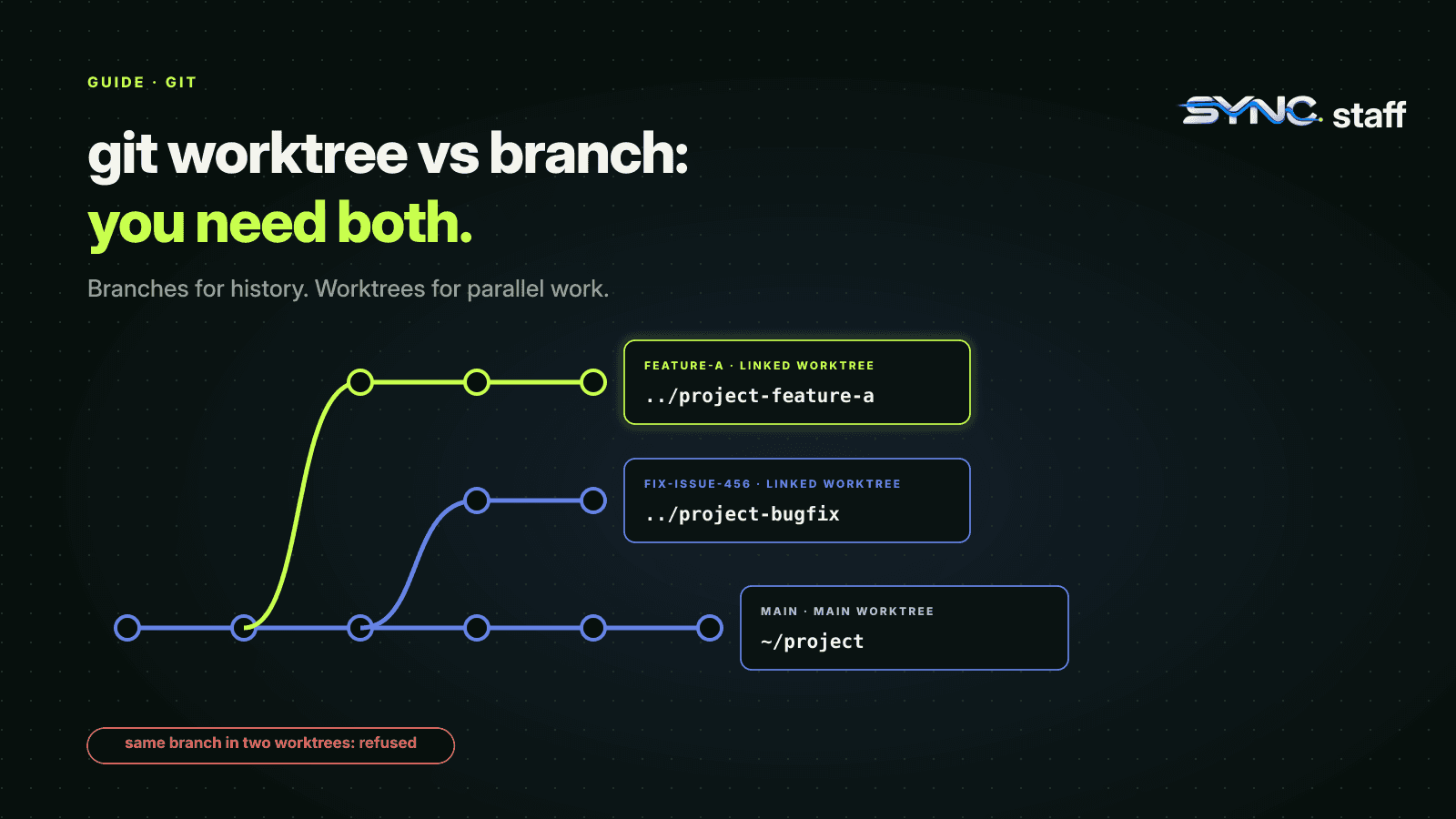
Git worktree vs branch is a confusing comparison, because they aren't alternatives. A branch is a line of history; a worktree is a folder where a branch is checked out. You use them together. The question that matters is whether you need more than one working folder at a time, and with AI coding agents working in parallel, the answer has suddenly become yes for a lot of teams. This guide explains the difference, the commands, the one rule that trips everyone up, and why parallel agents need worktrees, not just branches.
What's the difference between a git worktree and a branch?
A branch is a named pointer to a line of commits. A worktree is a working directory where one branch, or a detached commit, is checked out. A normal repository has one worktree, so you work on one branch at a time and switch between them. Adding linked worktrees lets you check out several branches at once, each in its own folder, all sharing one repository history.
Git's documentation puts it simply: "A git repository can support multiple working trees, allowing you to check out more than one branch at a time." The folder you cloned is the main worktree. Every extra one you add is a linked worktree. Each linked worktree shares everything with the repository except per-worktree files such as HEAD and the index.
| Branch | Worktree | |
|---|---|---|
| What it is | A pointer to a line of commits | A folder with a branch or commit checked out |
| How many at once | Unlimited branches, one checked out per folder | One main plus any number of linked worktrees |
| Switching | git switch changes the files in your one folder |
Each worktree keeps its own files; you change folders |
| Uncommitted work | Must be committed or stashed before switching | Stays where it is in its own folder |
| Disk cost | Nothing extra | One checkout of files per worktree, sharing one history |
| Best for | Sequential work | Parallel work, or keeping one task open while doing another |
When to use a branch alone
Most of the time, branches are all you need. If you work on one thing at a time and switch occasionally, one folder and git switch is simpler and uses no extra disk. Branches remain the unit you push, review and merge, whatever you use for folders.
When to use a worktree
Add a worktree when you need two checkouts at the same moment:
- An urgent fix while a feature is half done. Fix it in a new worktree without stashing or committing your work in progress.
- Reviewing a pull request while your own branch keeps building or running.
- Long-running jobs, like a test suite or a build, in one checkout while you keep editing another.
- Parallel agents, each needing its own files. More on this below.
The commands
Create a worktree on a new branch:
git worktree add -b feature-a ../project-feature-a
Check out an existing branch in a new worktree:
git worktree add ../project-bugfix fix-issue-456
Create a throwaway worktree with a detached HEAD, not tied to any branch:
git worktree add -d ../experiment
See every worktree, its branch and whether it's locked or prunable:
git worktree list
Remove one when you're done. Only clean worktrees can be removed without --force:
git worktree remove ../project-feature-a
If you deleted a worktree folder by hand, clean up git's leftover records:
git worktree prune
The rule that trips everyone up
A branch can be checked out in only one worktree at a time. Git's add command "refuses to create a new worktree when
It explains two things you'll run into. First, you'll see an error saying a branch is already used by another worktree when you try to check it out twice; check it out in the worktree that already has it, or create a new branch. Second, tools that create worktrees automatically often start them on a detached HEAD or a fresh branch for exactly this reason. Codex starts its managed worktrees on a detached HEAD; Claude Code creates a new branch named worktree-<name> for each one.
Is a worktree better than a second clone?
For parallel work in one repository, usually yes. A second clone duplicates the whole history and has its own remotes and settings to keep in sync. A worktree shares the repository's history and objects, so it's lighter and every commit you make in it is immediately visible to the others. A separate clone is still the right choice when you want complete independence, for example to test a fresh checkout.
Why parallel AI agents need worktrees, not just branches
Here's where the distinction stops being academic. If you run two AI coding agents in one folder, putting them on different branches doesn't separate them. They share the same files on disk. Switching branches under a running agent changes its files mid-task, and two agents editing at once overwrite each other.
Worktrees fix that. Each agent gets its own folder and branch, and can't touch the other's files. Both major agents now build this in:
- Claude Code:
claude --worktree feature-authstarts a session in.claude/worktrees/feature-authon branchworktree-feature-auth, and blocks edits that reach back into the main checkout. See Claude Code worktrees. - Codex:
codex --worktreeruns a session in a managed worktree under~/.codex/worktrees. We tested it with two agents in Codex worktrees.
What worktrees don't solve
Worktrees separate the files. They don't separate the work. When two worktrees change the same lines, git reports a conflict when you merge them. In our Codex test, two agents in separate worktrees rewrote the same line, both succeeded, and the second merge stopped with CONFLICT (content): Merge conflict. Isolation changed a silent overwrite into a visible conflict, which is better, but it still arrived after the work was done.
That's manageable with two agents. My co-founder Nick and I run between 2 and 15 at a time across Claude Code, Codex and Gemini, and the expensive overlaps were the ones nobody planned: two features that both touched the same schema. We've written up the tools people use to manage many worktrees in Claude Squad, Conductor and parallel agent tools.
Common worktree errors and fixes
- "Already checked out" or "already used by worktree". The branch is checked out in another worktree. Switch to that worktree, or create a new branch for this one with
git worktree add -b <new-branch> <path>. git worktree removerefuses. The worktree has untracked files or uncommitted changes. Commit or discard them, or use--forceif you're sure. A locked worktree needs--forcetwice, orgit worktree unlockfirst.- A deleted folder still shows in
git worktree list. You removed the directory by hand. Rungit worktree pruneto clear the stale record; git also prunes these eventually on its own. - You moved a worktree and git lost track of it. Run
git worktree repairto reconnect it. - A worktree on an external drive keeps disappearing from the list. Lock it with
git worktree lock --reason "external drive"so git doesn't prune it while the drive is unplugged.
Reading git worktree list
The main worktree is always listed first, followed by each linked worktree with the commit it has checked out and its branch, or "detached HEAD" if none. Git also marks a worktree "locked" or "prunable". Run it whenever you're unsure which folder an agent is working in: with several parallel agents, it's the quickest map of who is on what.
Worktrees and your editor
Open each worktree as its own editor window, rather than switching folders inside one window, so each window's file tree, search and terminal all point at one checkout. Remember that a worktree is a fresh checkout: dependencies such as node_modules and build output live per worktree, so run your install step in each new one, or let your agent do it as its first task. Ignored files like .env aren't copied either; Claude Code's .worktreeinclude file and Codex's app handle that for worktrees they create.
Branches for history, worktrees for parallel work
Use branches for every change, and add worktrees when you need more than one checkout at a time. For parallel AI agents, that's always: one worktree per agent stops them overwriting each other. Then plan for what worktrees can't do, which is tell one agent that another is about to change the same file. SyncStaff does that part: agents from any tool declare their files and take a lease before editing, so overlapping work is caught before it starts, not at merge.
Sources: git-worktree documentation, Claude Code worktrees documentation.
Frequently asked questions
What is the difference between git worktree and branch?
A branch is a named pointer to a line of commits. A worktree is a folder where a branch or commit is checked out. A normal repository has one worktree, so you work on one branch at a time; linked worktrees let you check out several branches at once, each in its own folder.
Can the same branch be checked out in two worktrees?
No. Git refuses to create a worktree for a branch that's already checked out in another worktree, unless you force it. Check the branch out where it already is, or create a new branch for the new worktree. Tools like Codex start worktrees on a detached HEAD partly for this reason.
Is a git worktree better than cloning the repository again?
For parallel work in one repository, usually yes. A worktree shares the repository's history and objects, so it's lighter than a second clone and commits made in it are immediately visible from your other worktrees. A separate clone still suits cases where you want complete independence, such as testing a fresh checkout.
Why do AI coding agents need git worktrees?
Agents in one folder share the same files on disk, even on different branches, so they overwrite each other and switching branches changes files under a running agent. A worktree per agent gives each its own folder and branch. Conflicts between their changes still appear when you merge.