Claude Code in tmux: A Terminal Setup for Many Agents
The best terminal for Claude Code, the three tmux lines that fix Shift+Enter and notifications, split panes for agent teams, and a layout for many agents.
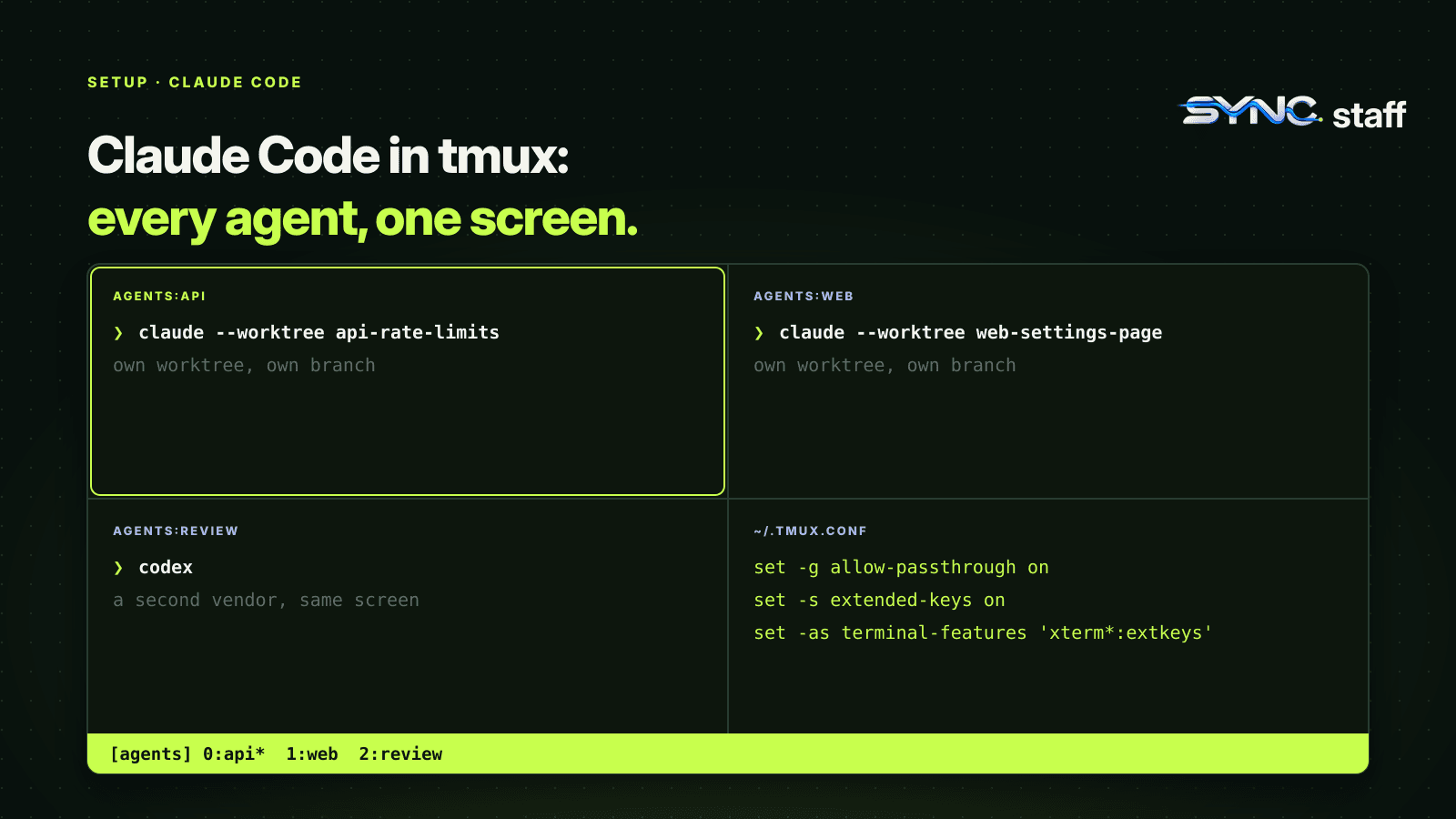
Running Claude Code in tmux is the simplest way to watch several agents at once: one pane per agent, all visible, all in one terminal. It's how I run mine. But tmux quietly breaks a few things Claude Code relies on, like Shift+Enter, notifications and session status, and the choice of terminal underneath changes what works at all. This guide covers the best terminal for Claude Code, the three tmux lines that fix it, split panes for agent teams, and a layout for running many agents without losing track of them.
What is the best terminal for Claude Code?
Claude Code works in any terminal, but Ghostty, Kitty and iTerm2 need the least setup: Shift+Enter inserts a newline out of the box, and they're the terminals where Claude Code sends desktop notifications by default. WezTerm, Warp, Apple Terminal and Windows Terminal also handle Shift+Enter without setup. VS Code, Cursor and Zed need /terminal-setup run once.
| Terminal | Shift+Enter newline | Desktop notifications by default | Agent team split panes |
|---|---|---|---|
| iTerm2 | Works | Yes | Yes, with the it2 CLI |
| Ghostty | Works | Yes | No |
| Kitty | Works | Yes | Through tmux |
| WezTerm, Warp, Apple Terminal | Works | No | Through tmux |
| Windows Terminal | Works | No | No |
| VS Code, Cursor integrated terminal | Run /terminal-setup |
No | No |
Two details matter for multi-agent work. First, in terminals without default notifications you can set "preferredNotifChannel": "terminal_bell" in ~/.claude/settings.json, or add a Notification hook, so a waiting agent still gets your attention. Second, split panes for Claude Code agent teams need tmux or iTerm2, and aren't supported in VS Code's integrated terminal, Windows Terminal or Ghostty.
Why tmux for Claude Code
With one agent, any terminal tab will do. With five, tabs hide the one that's stuck waiting for approval. tmux gives you:
- Every agent on screen at once, in split panes or windows you can name.
- Sessions that survive. Close your laptop or drop an SSH connection and the agents keep running;
tmux attachbrings them back. - One layout for every vendor. A tmux pane doesn't care whether it's running Claude Code, Codex or Gemini.
My co-founder Nick and I run between 2 and 15 agents at a time on one repository. I watch mine in tmux split panes; Nick works in Codex. The split view is what lets one person notice when an agent is idle, looping or waiting, before it wastes an hour.
Configure tmux for Claude Code
Inside tmux, by default, Shift+Enter submits instead of adding a newline, and desktop notifications and the progress bar never reach your real terminal. Add these three lines to ~/.tmux.conf:
set -g allow-passthrough on
set -s extended-keys on
set -as terminal-features 'xterm*:extkeys'
Then apply them to the running server:
tmux source-file ~/.tmux.conf
allow-passthrough lets notifications and progress updates through to the outer terminal. The extended-keys lines let tmux tell Shift+Enter apart from Enter. If you'd rather not depend on Shift+Enter at all, Ctrl+J and \ followed by Enter insert a newline in every terminal.
Run /terminal-setup in the host terminal, not inside tmux, because it writes to the host terminal's configuration.
Split panes for Claude Code agent teams
Claude Code's experimental agent teams can show every teammate in its own pane. The default display, in-process, runs all teammates inside your main terminal, where you switch between them with the arrow keys. Split panes need tmux or iTerm2.
Choose the mode with teammateMode in ~/.claude/settings.json:
{
  "teammateMode": "auto"
}
"auto" uses split panes when you're already inside tmux, or in iTerm2 with the it2 CLI installed, and falls back to in-process otherwise. "tmux" turns split panes on and picks tmux or iTerm2 automatically. For one session, run claude --teammate-mode auto.
On macOS, Anthropic suggests starting tmux with tmux -CC inside iTerm2, which maps tmux panes to native iTerm2 panes. If a team's tmux session outlives the Claude Code session, list and remove it:
tmux ls
tmux kill-session -t <session-name>
For what agent teams can and can't coordinate, including what happens when two teammates edit the same file, see what breaks when Claude Code agent teams collide.
A tmux layout for many agents
For parallel sessions you start yourself, pair each tmux window with its own worktree, so the agents can't overwrite each other's files:
tmux new-session -d -s agents -n api
tmux send-keys -t agents:api 'claude --worktree api-rate-limits' Enter
tmux new-window -t agents -n web
tmux send-keys -t agents:web 'claude --worktree web-settings-page' Enter
tmux new-window -t agents -n review
tmux send-keys -t agents:review 'codex' Enter
tmux attach -t agents
That gives one named window per task, each Claude session in its own worktree and branch, and a Codex window for review. Naming windows after the work, not the tool, makes the status bar a live task list.
A few habits keep a big layout manageable:
- One task per window. If a window's name no longer matches what the agent is doing, it's drifted. Stop it or rename it.
- Notifications on. With
allow-passthroughset, each waiting agent can still alert you while you're looking at another pane. - Close finished work. When you exit a clean
--worktreesession, Claude Code removes the worktree, asking first if you named the session; if there are changes, it asks whether to keep them. Clean up as you go. - Watch for loops. An agent that has tried the same fix twice should be stopped and re-prompted, not left to burn tokens.
We cover worktree sessions in detail in Claude Code worktrees, and the dedicated tools that build this layout for you in Claude Squad, Conductor and parallel agent tools.
Session status without tmux
Some terminals implement the OSC 7501 Program Status Protocol, which shows whether each Claude Code session is working, waiting on you or done, right in the terminal's own interface. It needs Claude Code v2.1.295 or later. Inside tmux it doesn't reach your terminal, so if your terminal supports it and you only run a few sessions, plain tabs plus status may be enough. Agent view (claude agents) is another option, showing background sessions on one screen.
Is the terminal the best way to use Claude Code?
For running several agents at once, yes. The terminal gives you split panes, sessions that survive disconnects, and the same layout for every vendor's CLI. The desktop app and editor extensions are better for one focused session with visual diffs. Many developers use both: the IDE for the change they're steering closely, tmux for the agents working in the background.
Troubleshooting Claude Code in tmux
- Shift+Enter submits instead of adding a newline. The
extended-keyslines aren't active. Add them, runtmux source-file ~/.tmux.conf, and use Ctrl+J in the meantime. - No notifications from agents in tmux. Check
allow-passthroughis on, that your terminal has notification permission in your operating system's settings, and, in terminals without default notifications, thatpreferredNotifChannelis set or a Notification hook is configured. - Agent team split panes don't appear. Check tmux is on your PATH with
which tmux. For iTerm2, check theit2CLI is installed and the Python API is enabled in iTerm2's settings. Remember the task also has to be big enough for Claude to spawn teammates at all. - The display flickers or scrollback jumps. Switch to fullscreen rendering with
/tui fullscreen, or start Claude Code withCLAUDE_CODE_NO_FLICKER=1. - A team's tmux session is still there after Claude exits. Find it with
tmux lsand remove it withtmux kill-session -t <name>. - Huge pastes get mangled. Write the content to a file and ask Claude to read it instead of pasting thousands of lines into a pane.
If you work over SSH, tmux becomes even more valuable: the agents keep running on the remote machine when your connection drops, and desktop notifications still reach your laptop in Ghostty, Kitty and iTerm2 once passthrough is on.
Seeing every agent isn't the same as coordinating them
A good tmux layout lets one person watch many agents. It doesn't tell those agents about each other, and it can't show you your teammate's agents at all. When Nick's Codex session and one of my Claude sessions both decide to touch the same schema, no pane layout warns either of us. That's the gap SyncStaff fills: every agent, in any pane, any tool and any teammate's terminal, declares what it's about to change and leases the files first.
Sources: Configure your terminal for Claude Code, Claude Code agent teams documentation, Claude Code worktrees documentation.
Frequently asked questions
What is the best terminal for Claude Code?
Ghostty, Kitty and iTerm2 need the least setup: Shift+Enter works out of the box and Claude Code sends desktop notifications in them by default. WezTerm, Warp, Apple Terminal and Windows Terminal also handle Shift+Enter. VS Code, Cursor and Zed terminals need /terminal-setup run once.
How do I configure tmux for Claude Code?
Add set -g allow-passthrough on, set -s extended-keys on, and set -as terminal-features 'xterm*:extkeys' to ~/.tmux.conf, then run tmux source-file ~/.tmux.conf. Passthrough lets notifications reach your real terminal, and extended keys let tmux tell Shift+Enter from Enter so newlines work inside tmux.
How do I get split panes for Claude Code agent teams?
Split panes need tmux or iTerm2. Set teammateMode to auto in ~/.claude/settings.json to use split panes when you're inside tmux or in iTerm2 with the it2 CLI, or tmux to turn them on explicitly. They aren't supported in VS Code's integrated terminal, Windows Terminal or Ghostty.
Is the terminal the best way to use Claude Code?
For running several agents at once, yes. The terminal gives you split panes, sessions that survive disconnects with tmux, and the same layout for every vendor's command-line tool. The desktop app and editor extensions suit one closely steered session with visual diffs, and many developers use both.