Claude Code Plan Mode: Plan, Approve, Then Build
How Claude Code plan mode works: entering it, approving and editing plans, when to skip it, how it behaves in agent teams, and using plans to claim files.
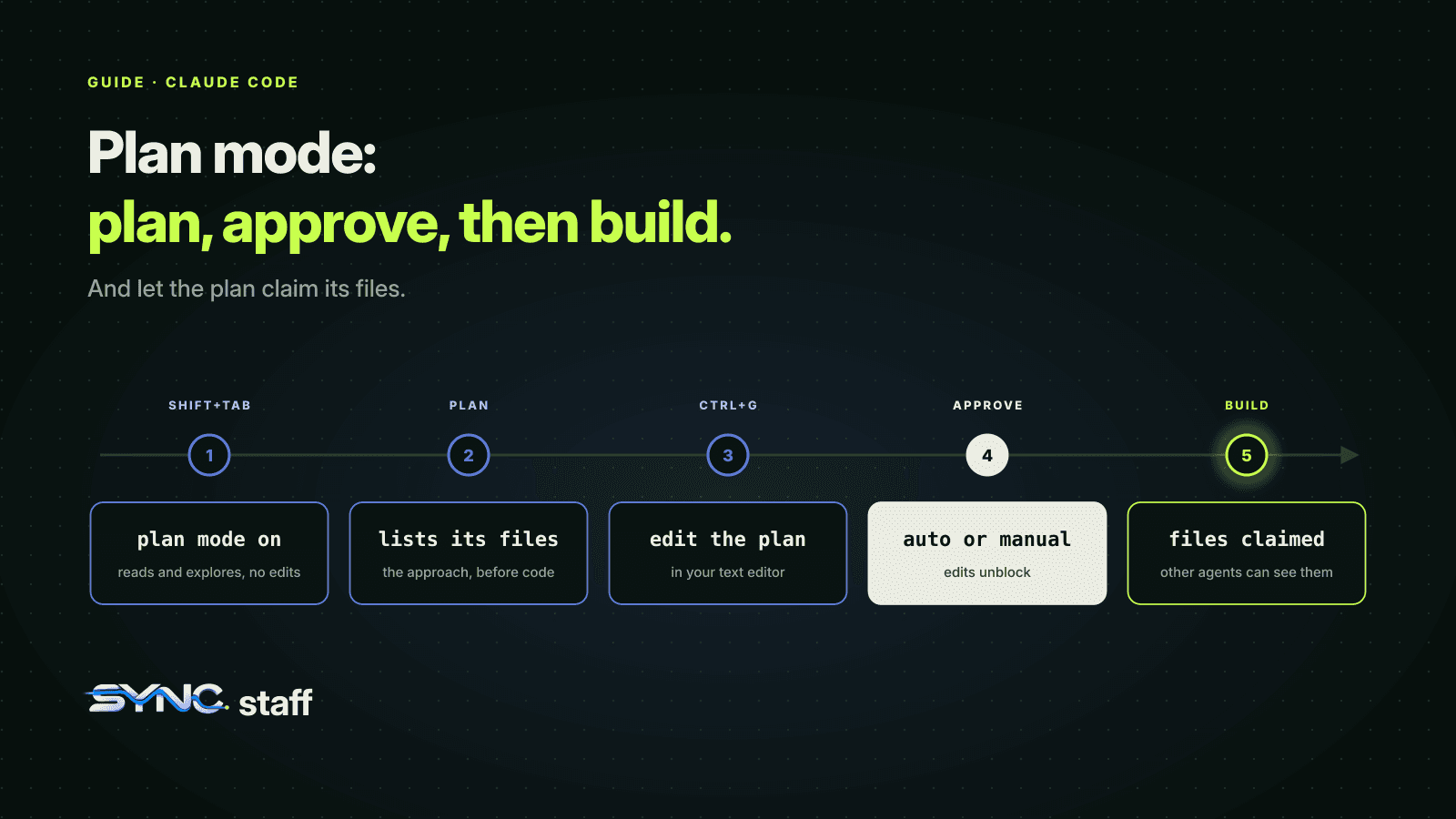
Claude Code plan mode makes Claude research and propose a change before it touches your code. It's the cheapest point to catch a wrong approach: fixing a plan costs a sentence, fixing an implementation costs an afternoon. For a team running several agents, a plan does a second job. It's the first moment anyone can see which files an agent intends to change. This guide covers how plan mode works, the approval options, when to skip it, how it behaves in agent teams, and how to use plans to stop agents colliding.
What is plan mode in Claude Code?
Plan mode is a permission mode in which Claude reads files, runs shell commands to explore, and writes a plan, but doesn't edit your source. Edits stay blocked until you approve the plan. It separates figuring out what to do from doing it, so you review the approach before any code changes.
Plan mode has one exception worth knowing. In interactive terminal sessions where bypass permissions are available, Claude Code doesn't enforce plan mode's blocks: Claude is still told to plan without editing, but an edit it attempts during planning runs without prompting. If you rely on plan mode as a guardrail, don't start sessions that way.
How to use plan mode
There are three ways in:
- Press Shift+Tab until the status bar shows
⏸ plan mode on. - Prefix a single prompt with
/plan. - Start the whole session in plan mode:
claude --permission-mode plan.
Press Shift+Tab again to leave plan mode without approving anything.
What happens to shell commands while you plan depends on your setup. If auto mode is available and the useAutoModeDuringPlan setting is on, which it is by default, a classifier reviews commands instead of asking you: approved commands run, rejected ones are blocked. Without auto mode, commands outside Claude Code's built-in read-only set prompt for approval.
Review and approve a plan
When the plan is ready, Claude shows it and asks how to proceed:
| Option | What happens |
|---|---|
| Yes, and use auto mode | Approve and implement with auto mode's classifier reviewing actions. Reads "Yes, auto-accept edits" if auto mode isn't available |
| Yes, manually approve edits | Approve and review each edit yourself |
| No, keep planning | Stay in plan mode and tell Claude what to change |
Press Ctrl+G to open the plan in your editor and change it directly before Claude proceeds. If the showClearContextOnPlanAccept setting is on, there's an extra option that approves the plan and clears the planning conversation, so implementation starts with a clean context. Approving also gives an unnamed session a title based on the plan.
The explore, plan, implement, commit loop
Anthropic's best-practices guide recommends four phases for any change that isn't trivial:
- Explore in plan mode: "read /src/auth and understand how we handle sessions and login."
- Plan: "I want to add Google OAuth. What files need to change? What's the session flow? Create a plan."
- Implement: leave plan mode and let Claude code against its plan, with tests to verify it.
- Commit: ask Claude to commit with a descriptive message and open a pull request.
The second prompt asks the most important question for a team: what files need to change. We'll come back to that.
When to skip plan mode
Planning adds overhead. Anthropic's own rule of thumb: "If you could describe the diff in one sentence, skip the plan." A typo, a log line or a renamed variable doesn't need one. Plan when you're unsure of the approach, when the change touches several files, or when you don't know the code well.
Make plan mode the default for a project
To start every terminal session in a repository in plan mode, set defaultMode to plan in the shared .claude/settings.json:
{
  "permissions": {
    "defaultMode": "plan"
  }
}
That suits codebases where most changes are risky enough to deserve a plan. Note that the same trick doesn't work for auto mode: Claude Code ignores defaultMode: "auto" in project and local settings files, so auto has to be set in each developer's user settings. Conversations started from the VS Code extension don't read project settings for the starting mode. We cover where each setting belongs in Claude Code settings for teams.
Plan mode in agent teams
Agent teams use plan mode in a way that surprises people. If you put the lead in plan mode and ask for a teammate, the teammate works read-only until its plan is ready, then sends a plan approval request to the lead. The lead's session approves it as soon as it arrives, without the lead or you reviewing it. The teammate's later edits still go through normal permission prompts, but the plan itself isn't checked by a person.
It's also expensive. Anthropic's cost documentation says agent teams use roughly seven times more tokens than standard sessions when teammates run in plan mode, because each teammate keeps its own context. We cover agent teams' other gaps in what breaks when Claude Code agent teams collide, and costs in what Claude Code costs a team.
Use the plan to stop agents colliding
Here's the part most plan-mode guides miss. A good plan lists the files it will change. That list is exactly what every other agent working in the repository needs to know, and it exists before a single line is edited.
Most teams throw that information away. The plan gets approved, the agent starts editing, and nobody else's agents ever learn that schema.ts is about to change. Two plans approved an hour apart can both decide to restructure the same file, and the conflict surfaces at merge.
We use the plan as a claim. My co-founder Nick and I run between 2 and 15 agents at a time on one repository, across Claude Code, Codex and Gemini. Before any agent edits, it declares what it's about to change, which files, and any interface it will alter, and takes a lease on those files. If another agent already holds them, the request is refused before any work starts. Between August 3 and October 18, 2026, that happened 40 times, and in 37 of them the agent moved to other files within a day. Changes that matter go to one of us before the agent proceeds.
You can apply the same idea without any tooling:
- Ask every plan to end with a file list: the files it will create, change and delete.
- Compare it with work in flight before approving. If another session's plan names the same files, sequence them.
- Treat the file list as a promise. If implementation needs a file the plan didn't name, stop and re-plan.
A plan prompt that works on a team
The quality of a plan depends on what you ask for. This prompt template asks for everything a reviewer, and every other agent, needs to know:
Plan this change before writing any code. Include:
1. The approach in three or four sentences.
2. Every file you will create, change or delete.
3. Any function, API, schema or config key whose shape changes,
   and every caller that has to change with it.
4. The tests you will add or update, and how you'll know it works.
5. What is out of scope.
6. The riskiest step, and how you'd undo it.
Items 2 and 3 are the ones that matter most for collisions. A plan that says "update the user model" isn't reviewable; a plan that names src/models/user.ts, the User.email field and its four callers is.
Two settings make planning smoother. Press Ctrl+G to edit the plan yourself rather than arguing with Claude about wording. And if you turn on showClearContextOnPlanAccept, you can approve the plan and start implementation with a clean context, so the exploration that produced the plan doesn't crowd out the work.
Plan first, then claim before you build
Plan mode is the cheapest safety step in Claude Code: research first, review the approach, then implement against an agreed plan. Use it for anything you couldn't describe in a sentence, open the plan in your editor when it needs work, and skip it for trivial edits. On a team, take the extra step of turning each plan's file list into a claim other agents can see. That's what SyncStaff does: agents from any tool declare their files before editing, conflicts are refused at the start, and the changes that matter reach a person.
Sources: Claude Code permission modes documentation, Claude Code best practices, Manage Claude Code costs, Claude Code agent teams documentation.
Frequently asked questions
What is plan mode in Claude Code?
Plan mode is a permission mode in which Claude reads files, runs exploring commands and writes a plan, but doesn't edit your source until you approve. It separates deciding what to do from doing it, so you can catch a wrong approach before any code changes. Enter it with Shift+Tab or /plan.
How do I start Claude Code in plan mode?
Press Shift+Tab until the status bar shows plan mode, prefix one prompt with /plan, or start the session with claude --permission-mode plan. To make it the default for a repository's terminal sessions, set defaultMode to plan under permissions in the shared .claude/settings.json file.
How do I approve or edit a plan in Claude Code?
When the plan is ready, choose to approve with auto mode, approve and review each edit manually, or keep planning with feedback. Press Ctrl+G to open the plan in your text editor and change it directly before Claude proceeds. Press Shift+Tab to leave plan mode without approving.
When should I skip plan mode?
Skip it when the change is small and clear. Anthropic's rule of thumb: if you could describe the diff in one sentence, skip the plan. Use plan mode when you're unsure of the approach, when the change touches several files, or when you don't know the code being modified well.